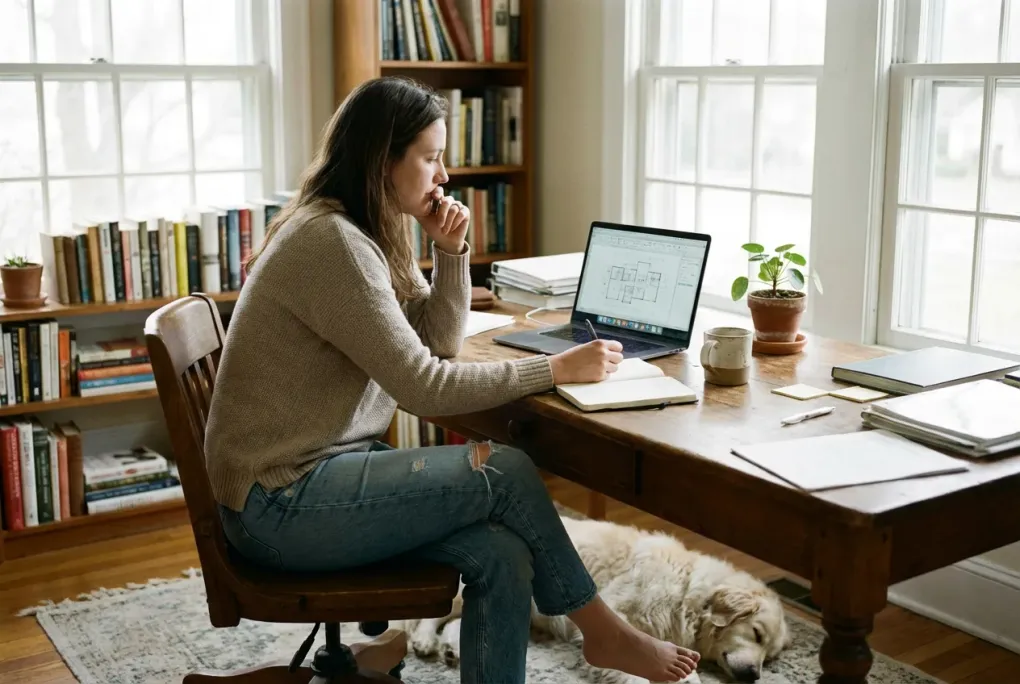
Lighting for home office focus and less eye strain
Bad lighting quietly ruins your workday. You might not notice it at first, but after a few hours your eyes feel tired, your head starts to ache, and your focus drifts. The wrong lighting setup forces your eyes to work harder than they should, and that fatigue adds up fast.
The good news is that lighting is one of the easiest and cheapest things to fix in a home office. You do not need a full studio setup or expensive gear. You just need to understand a few basic principles and make a few smart adjustments.
This guide walks you through how to light your home office for better focus, less eye strain, and fewer headaches.
Why lighting matters for focus and comfort
Your eyes are constantly adjusting to the light around you. When lighting is poor:
- Eye strain: Your eyes work harder to see text and details
- Headaches: Bright spots, glare, or flickering lights trigger tension
- Fatigue: Poor lighting reduces alertness and makes you tired faster
- Productivity drops: You read slower, make more errors, and lose focus
Good lighting does the opposite. It makes your workspace feel comfortable, keeps your eyes relaxed, and helps you stay alert without effort.
The three types of light in your office
Every room has three layers of light. Understanding them helps you use each one effectively.
1. Ambient light (general room lighting)
This is the overall light that fills the room. It can come from overhead fixtures, windows, or lamps.
Goal: Provide enough light so the room doesn’t feel dark, but not so much that it creates glare.
Common problems:
- Relying only on a single bright overhead light (creates harsh shadows)
- Working in a dim room with only a monitor for light (causes eye strain)
2. Task lighting (focused work light)
This is the most important light for your desk. It’s a focused beam that lights up your work surface without flooding the whole room.
Goal: Bright enough to see documents and keyboard clearly, positioned to avoid glare on your screen.
Common problems:
- No task light at all (forcing you to work in shadow)
- Task light shining directly onto your screen (creates glare)
- Light that’s too dim or too harsh
3. Accent lighting (optional)
This is decorative light that adds warmth or highlights. It’s not essential for work, but it can make the space more pleasant.
Examples: A small lamp on a shelf, LED strips behind a monitor, or a floor lamp in the corner.
How to set up your lighting for focus
Follow this order to build a good lighting setup.
Step 1: Start with ambient light
Your ambient light should provide a soft, even base level of brightness.
If you have windows:
- Use natural light during the day when possible
- Position your desk perpendicular to windows (not directly facing or backing them) to reduce glare
- Use blinds or curtains to control bright sunlight
If you don’t have good windows:
- Use a ceiling light or floor lamp to light the room evenly
- Avoid relying on a single bright overhead light directly above your desk
- If your ceiling light is harsh, add a lampshade or switch to a softer bulb
The goal: The room should feel comfortably lit, not dark or harsh.
Step 2: Add task lighting
This is where the real difference happens. A good task light makes your work surface bright and clear without creating problems.
Positioning:
- Place the task light to the side of your monitor (left or right, about 45 degrees)
- The light should shine down onto your desk, not into your eyes or screen
- For right-handed people, a light on the left side reduces hand shadows when writing
- For left-handed people, put it on the right
Height and angle:
- The light should be higher than your monitor
- Angle it so the beam hits your desk surface, not your screen
- If you see glare on your monitor, adjust the angle or move the light further back
Brightness:
- You want enough light to read small text easily on paper
- Too bright is just as bad as too dim - it creates harsh contrast
- Look for adjustable brightness if possible
What to look for in a task light:
- Adjustable arm and head for positioning
- Dimmable brightness
- Neutral color temperature (not too warm, not too cool)
- No flicker (cheap LED lights can flicker, which causes headaches)
A good Desk and task lighting setup is worth the investment - it’s one of the highest-impact changes you can make.
Step 3: Balance your screen brightness
Your monitor is also a light source. If it’s much brighter or dimmer than the room, your eyes will strain.
Rule of thumb: Your screen brightness should match the brightness of the area around it.
How to check:
- Look away from your screen at your desk or wall
- Now look back at your screen
- It shouldn’t feel like a bright flashlight or a dim cave
Adjust:
- Most monitors have brightness controls. Start around 50% and adjust from there
- Use night mode or blue light filters in the evening
- Keep your screen clean - dust and fingerprints make it harder to read
Common lighting mistakes to avoid
Mistake 1: Working with only a monitor for light
Your monitor is not a room light. Staring at a bright screen in a dark room is one of the fastest ways to get eye strain and headaches.
Fix: Add at least a small lamp to light the room around you.
Mistake 2: Glare on your screen
Glare happens when light reflects off your monitor. It makes text hard to read and forces you to squint.
Fix:
- Move your monitor so windows are to the side, not behind or in front
- Use blinds or curtains to diffuse direct sunlight
- Adjust your task light angle so it doesn’t reflect on the screen
Mistake 3: Mixing different color temperatures
Different light sources can have different “colors” - warm yellow, neutral white, cool blue. Mixing them creates a weird, uncomfortable feeling.
Fix:
- Try to use bulbs with similar color temperatures (around 4000K-5000K for work)
- If you have multiple light sources, make sure they match
Mistake 4: Overhead light only
A single bright light directly above creates harsh shadows on your face and desk, making it hard to see clearly.
Fix: Add a desk lamp to fill in shadows and create more even lighting.
Mistake 5: Too dim
Working in dim light forces your eyes to strain to see details.
Fix: Brighten the room with a lamp or brighter bulbs. Your eyes should feel relaxed, not tired.
Quick lighting checklist
Use this to audit your current setup:
- The room is comfortably lit, not dark
- Your desk has a task light positioned to the side
- No glare or reflections on your monitor
- Screen brightness matches the room brightness
- You can read documents without squinting
- No harsh shadows on your work surface
- Light sources are not directly in your line of sight
If you checked “no” on several items, you probably found the source of your eye strain.
Lighting for different times of day
Your lighting needs change throughout the day.
Morning and afternoon (natural light)
- Use windows when possible
- Position desk perpendicular to windows
- Close blinds if sunlight creates glare
Evening (artificial light only)
- Turn on your task light and ambient light
- Reduce monitor brightness
- Consider warmer light to help wind down later
Overcast days
- You’ll need more artificial light
- Your task light becomes essential
- Don’t rely on the dim natural light alone
When to upgrade your lighting
You can get good results with basic lamps, but certain situations call for better gear.
Consider upgrading if:
- You work long hours (6+ hours at a desk)
- You get frequent headaches or eye strain
- Your current lights flicker or buzz
- You can’t position your current lamp properly
- You work in a room with no natural light
What to look for:
- Adjustable arm and head
- Dimmable brightness
- Neutral color temperature (4000K-5000K)
- High CRI (Color Rendering Index) for better visual clarity
- Stable base that won’t tip
A quality Desk and task lighting solution will last years and pay for itself in comfort and productivity.
Putting it all together
Good home office lighting doesn’t have to be complicated:
- Start with ambient light - light the room evenly
- Add task lighting - positioned to the side, angled down
- Balance your screen - match brightness to the room
- Avoid glare - control windows and adjust angles
- Check your setup - use the quick checklist
The goal is simple: a workspace where your eyes feel comfortable all day, you can see clearly without effort, and you don’t end your day with a headache.
For more on creating a comfortable workspace, see our guide on Home office ergonomic basics for people who sit all day and Desk setup guide for remote workers who live at their workstation and How to build a real home office in a small apartment.
FAQ: Home office lighting
What is the best color temperature for home office lighting?
For most people, 4000K to 5000K works best. This is a neutral white that’s bright enough for focus without feeling cold. Avoid very warm light (below 3000K) for work - it’s too yellow and can make you sleepy.
How bright should my desk lamp be?
Bright enough to read small text easily on paper without squinting, but not so bright that it hurts to look at. Most adjustable Desk and task lighting desk lamps in the 400-600 lumen range work well.
Should I use multiple light sources?
Yes. Using 2-3 light sources (like a ceiling light + desk lamp + window) creates more even, comfortable lighting than a single bright source.
Can I work with just natural light?
You can, but only if it’s bright enough and consistent. Overcast days, morning/evening, or rooms with small windows will need supplemental lighting.
What if my desk is in a corner with no good lighting?
Add a desk lamp or floor lamp. Position it so it lights your work surface without creating glare on your monitor. A corner can actually work well because you can control the lighting completely with focused Desk and task lighting.