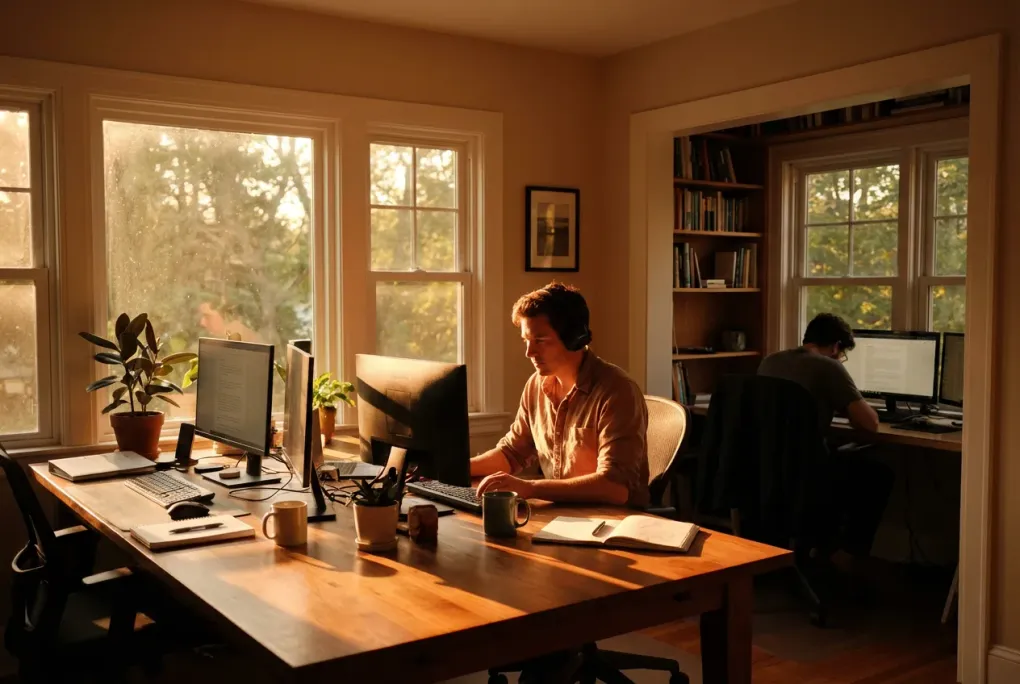
Remote worker desk setup guide for people who live at their workstation
If you work from home all day, a bad desk setup quietly grinds you down.
Stiff neck. Tight hips. Tired eyes. Constant fidgeting. You end the day scattered and drained, even if the work itself was not that hard.
This guide is for remote workers who live at their workstation and want a simple, calm setup that:
- Reduces pain and stiffness
- Makes it easier to focus for long stretches
- Stays low profile, not a gadget showroom
You will not find RGB lighting or 10 monitor command centers here. Just practical choices and clear steps.
Key points
- Fix Home office ergonomic basics for people who sit all day and monitor height first. Most pain and strain comes from these two.
- Aim for neutral joints. Wrists straight, shoulders relaxed, hips slightly above knees.
- Keep what you use daily within easy reach, everything else out of sight.
- Use light, not software tricks, to separate work from home in the same room.
- Build your setup in layers. Start with posture, then screen, then input devices, then lighting and sound.
Step 1: Decide what this desk needs to do for you
Before you buy anything, get clear on your actual work.
Ask yourself:
- How many hours do I sit here most days?
- Do I mostly type, design, code, call, or teach?
- Do I need to write on paper or use a tablet often?
- Do I switch between laptop and external monitor?
- Do I share this desk with someone else or use it alone?
Your answers shape the setup.
Examples
- A developer or writer who types all day needs a top tier ergonomic Ergonomic office chairs and keyboard position more than fancy speakers.
- A remote teacher or support rep needs a clean camera angle, clear audio, and a stable background.
- A designer may need more screen space and color accurate task lighting.
Write down your top 3 priorities. For many remote workers they are:
- Less pain and stiffness
- Fewer distractions
- A workspace that feels calm, not cluttered
Keep those in front of you as you go through the rest of this guide.
Step 2: Build a neutral sitting posture
You cannot fix a painful setup with apps. You fix it with alignment.
The goal is a neutral posture. Your joints are not pushed to extremes and your muscles do not have to work hard just to keep you upright.
How to set up your Ergonomic office chairs
If you can invest in only one thing, make it an ergonomic chair that adjusts in at least these ways:
- Seat height
- Backrest tilt and lock
- Lumbar support (built in or add on)
- Armrest height (and ideally width)
If you do not have a dedicated ergonomic chair yet, you can still improve what you have.
Chair setup checklist
- Sit with your hips all the way back in the chair.
- Adjust seat height so your feet rest flat on the floor, a footrest, or a small box.
- Aim for knees at about 90 to 110 degrees, hips slightly higher than knees.
- Set backrest so it supports the natural curve of your lower back.
- Adjust armrests so your shoulders can relax, not shrug up or slump down.
If your chair is too high and your feet dangle, use a footrest, a low box, or a stack of sturdy books. If your chair is too low and not adjustable, raise yourself with a firm cushion, then use a footrest if needed.
For more practical tips, see Home office ergonomic basics for people who sit all day.
Common posture mistakes to avoid
- Perching on the front edge of the chair. This removes back support and tires your lower back.
- Tucking one leg under you. This twists your pelvis and can cause hip and lower back pain.
- Leaning forward to see the screen. This usually means your monitor is too low or too far away.
Think of your chair as your base. Once it is stable and comfortable, you can match the desk and monitor to you, not the other way around.
Step 3: Set your desk and monitor height
Once your chair is dialed in, adjust your desk and screens to fit that posture.
Ideal desk height
For most people, a desk height between 70 and 76 cm works, but the right height is personal.
With your shoulders relaxed and elbows at your sides:
- Your elbows should be at about 90 degrees when your hands rest on the keyboard.
- Your wrists should be straight, not bent up or down.
If the desk is too high and not adjustable, you have two options:
- Raise your chair and add a footrest so you stay supported.
- Use a keyboard tray under the desk to lower your typing surface.
If the desk is too low, you can raise it on risers or blocks, or consider a height adjustable sit stand desk if your budget allows.
Monitor height and distance
Poor monitor placement is one of the fastest ways to get neck and eye strain.
Use this as a starting point:
- Top of the screen at or slightly below eye level when you sit upright
- Screen about an arm’s length away
- Center of the screen straight in front of you, not off to the side
If you use a laptop as your main screen, you have two options:
- Use a laptop stand to raise the screen to eye level, plus an external keyboard and mouse.
- Use an external monitor as your main screen, and keep the laptop off to the side as a secondary screen.
Why monitor arms are worth considering
A simple monitor arm can:
- Let you fine tune height and distance without stacking books
- Free desk space under the monitor
- Make it easy to switch between sitting and standing if you use a sit stand desk
If you work long hours, a monitor arm is often a better upgrade than a second monitor.
for more on avoiding common mistakes, see Sit stand desk setup mistakes that ruin your back and how to avoid them.
Step 4: Choose and place your input devices
Your keyboard and mouse are where your body meets your work. Small changes here can make a big difference.
Keyboard setup
You do not need an expensive ergonomic keyboard to get most of the benefit. Focus on:
- Position. Center the keyboard on your body, not on the desk. The B key should be roughly in line with your belly button.
- Distance. Keep it close enough that your elbows stay by your sides, not reaching forward.
- Tilt. Try a flat or slight negative tilt (front edge slightly higher than back) to keep wrists straight.
If your keyboard has flip out feet, try leaving them folded. The common tilt up position can increase wrist extension and strain.
Mouse or trackpad
Pick what feels natural for you, but avoid reaching.
- Keep the mouse at the same height as the keyboard.
- Place it close enough that your elbow stays near your body.
- If you feel wrist or forearm pain, try a vertical mouse or a trackball.
If you use a laptop trackpad, consider an external mouse for long sessions. It allows a more neutral hand and arm position.
for more on accessories that actually help, see Desk accessories that actually reduce pain, not just look cool.
Step 5: Get your lighting right
Good lighting reduces eye strain and makes your workspace feel calmer.
You want three things:
- Enough light on your work surface
- Minimal glare on your screens
- A different mood for work time versus off time
Task lighting basics
A simple adjustable desk and task lighting on your desk can:
- Light your keyboard and notebook without brightening the whole room
- Reduce harsh contrast between your screen and surroundings
- Improve your appearance on video calls if positioned well
Place the light so that it:
- Sits to the side of your monitor, not directly behind it
- Shines across your desk, not straight into your eyes
- Does not reflect in your screen
If you are right handed, place the light on the left to avoid casting shadows when writing. Do the opposite if you are left handed.
Natural light and screen placement
If you can, place your desk so that windows are to your side, not directly in front or behind your monitor. This reduces glare and makes it easier to see your screen.
If you cannot move the desk, use:
- Curtains or blinds to soften direct light
- A matte screen filter if reflections are a problem
Light as a work mode signal
You can use lighting to mark the start and end of your workday.
For example:
- During work: overhead light on, task light on
- After work: overhead off, only a soft lamp on the other side of the room
This small change helps your brain separate desk time from home time even when they share a room.
For more lighting tips, see Lighting for home office focus and less eye strain.
Step 6: Manage cables and clutter without going overboard
Visual noise can be as tiring as physical discomfort. You do not need a perfect minimalist setup, but you do want less friction.
A simple declutter pass
Use this quick process:
- Remove everything from your desk except your monitor, keyboard, mouse, and lamp.
- Add back only what you use every day, such as a notebook or pen.
- Move everything else to a drawer, shelf, or box.
If you are unsure about an item, store it nearby, not on the desk. You can always bring it back.
Basic cable management
You do not need a full cable raceway system. Just aim for not constantly in your way.
Options:
- A simple under desk cable tray for power strips and long runs
- Adhesive clips along the back edge of the desk
- Velcro straps or reusable ties to bundle cables
Keep one or two short charging cables easy to reach for phone or tablet. The rest can stay out of sight.
For ideas on keeping a small space organized, see How to build a real home office in a small apartment.
Step 7: Add small comforts that actually help
There are endless accessories marketed to remote workers. Most are optional. Focus on a few that give real comfort per dollar.
Useful additions
- Footrest. Helps if your chair is high or your legs feel tense. Can be a dedicated footrest or a stable box.
- Desk mat. Gives a consistent surface for mouse and keyboard and can protect the desk.
- Wrist rest. Can help some people, but only if your keyboard height and tilt are already good.
- Noise control. Simple foam panels, a rug, or heavy curtains can reduce echo for calls.
Things to skip or delay
- Multiple extra monitors if you have not fixed posture and lighting yet
- Novelty gadgets that add clutter without solving a real problem you wrote down
When in doubt, wait a week. If the same annoyance keeps showing up, then consider a tool to solve it.
Step 8: Create a calm mental bubble around your desk
Even a good physical setup will not help much if your attention is constantly pulled away.
You can create a focused bubble in three layers.
1. Visual boundaries
- Face your desk toward a wall or window, not the center of the room.
- Keep the area directly in front of you simple: screen, maybe a plant, maybe a single photo.
- Store personal items and hobbies out of your main line of sight.
2. Sound boundaries
- Use noise cancelling headphones or simple foam earplugs if your home is noisy.
- Try a consistent background sound, like soft instrumental music or white noise.
3. Routine boundaries
Use small rituals to mark the start and end of your work session.
For example:
- Start of day: turn on task light, put phone face down, open notebook to today’s page.
- End of day: close laptop, turn off task light, clear cups and dishes, put notebook away.
These actions help your brain switch modes even when your commute is five steps from the kitchen.
Step 9: Make it work for your body over time
Your body will change during the day. Energy, stiffness, and focus all rise and fall. Your setup should support that, not fight it.
Micro breaks
Set a simple rule, such as:
- Every 25 to 30 minutes, stand up for 30 to 60 seconds
- Look at something far away for 20 seconds to relax your eyes
- Roll your shoulders and gently turn your neck left and right
You do not need a full workout. The goal is to interrupt long periods of stillness.
Sitting and standing
If you have a height adjustable desk, use it. If not, you can still change positions.
Options:
- Stand for calls using a laptop on a high counter or temporary riser
- Sit on a different chair for short periods, such as a stool or exercise ball, to vary posture
The key is variety, not perfection.
Quick setup checklist
Use this list to audit your current remote worker desk setup.
Posture and chair
- Feet flat on floor or footrest, not dangling
- Hips slightly higher than knees
- Lower back supported by the chair
- Shoulders relaxed, not hunched or shrugged
Desk and screen
- Keyboard at a height where elbows are at about 90 degrees
- Wrists straight, not bent up or down
- Top of monitor at or slightly below eye level
- Monitor about an arm’s length away
- Main screen directly in front of you, not off to the side
Inputs and tools
- Keyboard centered on your body, not the desk edge
- Mouse close to the keyboard, at the same height
- Only daily use items on the main desk surface
Lighting and environment
- Task light that illuminates your work surface without glare
- Window light from the side, or controlled with curtains or blinds
- Simple system for cables so they are not in your way
- Clear start and end of day rituals at the desk
If you find more than three boxes unchecked, pick only one or two to fix this week. You do not need to rebuild everything at once.
Putting it all together
A good remote worker desk setup is not about buying the perfect chair or the latest monitor. It is about aligning your body with your tools, then removing the friction that wears you down over long days.
Start with:
- Chair and posture
- Monitor height and distance
- Keyboard and mouse position
- Lighting and clutter
Once those are in place, you can decide if you want extras like monitor arms, upgraded desk and task lighting, or a height adjustable desk.
Small, thoughtful changes will do more for your comfort and focus than any big impulse purchase. Build your setup layer by layer and let your body’s feedback guide the next step.
FAQ: Remote worker desk setup
How high should my monitor be for long workdays?
Set the top of your main screen at or slightly below eye level when you sit upright. You should be able to look at the center of the screen with a slight downward gaze and without bending your neck forward.
Is a standing desk necessary for a healthy home office?
No. A standing desk is helpful, but not required. You can get most of the benefit by changing positions often, taking micro breaks, and standing for calls using a counter or temporary riser.
If you want to try one, see our sit stand desk options.
What should I buy first for my remote desk setup?
Start with what affects your body the most. In order of impact, that is usually an adjustable Ergonomic office chairs, correct monitor height (often with a monitor arm), and a properly placed keyboard and mouse. Accessories come later.
How can I reduce neck and shoulder pain at my desk?
Check three things: your chair height, monitor height, and keyboard distance. Your feet should be supported, shoulders relaxed, elbows near your sides, and your main screen directly in front of you so you are not craning your neck.
For more, see Home office ergonomic basics for people who sit all day.
How do I keep my home office from feeling cluttered?
Limit your desk surface to daily use items only. Use a simple declutter pass once a week, keep cables bundled and off the main surface, and store extra gear in drawers or boxes instead of in your line of sight.
For more ideas, see How to build a real home office in a small apartment.